


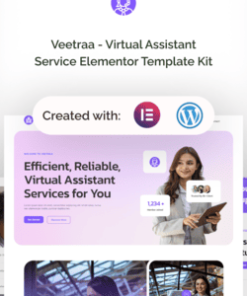
Introducing Veetraa a comprehensive template kit designed specifically for virtual assistant services- available exclusively for WordPress. With careful attention to detail and utilizing free plugins- Veetraa helps virtual assistants and service providers build a strong online presence without complex development. It’s tailored for virtual assistant agencies- remote service providers- and freelance
Note: Veetraa is not a traditional WordPress theme. Instead- it’s a complete template kit that includes all the necessary page content for the Elementor page builder- giving users the flexibility to design freely. While it’s optimized for use with the free Hello Elementor theme- Veetraa is compatible with most themes that support Elementor.
Suitable For:
- Virtual Assistant Agencies
- Remote Service Providers
- Freelance Professionals
Features:
- Using Free Elementor (Elementor Pro is not required)
- Unique & Clean Design
- Modern Design
- Build With Container
- 13 Ready to Use Pages
- Unlimited colors
- More than 900 Ready Fonts
- Fully Responsive Layout
- Fully CustomizableCross Browser Compatibility: Chrome- Firefox- Safari- Opera
Templates Included:
- Global Theme Style
- Home
- About
- Services
- Pricing
- Team
- Testimonial
- FAQ
- Error 404
- Blog Post
- Single Post
- Contact Us
- Header
- Footer
Required Plugin:
- Elementor
- ElementsKit Lite
- MetForm
- Gum Elementor Addon
- Elementor Header & Footer Builder
How to Import MetformsIf you have Elementor Pro- skip install of Metform and form blocks.
- Import the metform block templates
- Import the page template where the form appears and right-click to enable the Navigator
- Locate and select the Metform widget and click Edit Form. Choose New- then Edit Form. The builder will appear
- Click ‘Add Template’ grey folder icon.
- Click ‘My Templates’ tab.
- Choose your imported metform template- then click ‘Insert’ (click No for page settings).
- Once the template is loaded- make any desired customizations and click ‘Update & Close’ The form will appear in the template
- Click Update
Setup Global Header and Footer in ElementsKitIf you have Elementor Pro- headers and footers may be customized under Theme Builder.
- Import the header and footer template
- Go to ElementsKit > Header Footer and click Add New (if prompted with a wizard- you may click Next through it without taking any action)
- Title the header- leave Entire Site selected and toggle Activation to On
- Click the gray Edit Content button to load the builder
- Click the gray folder icon and select the header template to import- select your menu in the nav element and click Update.
- Repeat for Footer
ImagesThis Template Kit uses demo images from Envato Elements. You will need to license these images from Envato Elements to use them on your website- or you can substitute them with your own.
https://elements.envato.com/collections/QMU9C8G3PE
Best Regard- Gonang










Reviews
Clear filtersThere are no reviews yet.